Email headers allow us to see which servers an email has passed through, it is useful when investigating problems such as email delays, duplicate emails and bounce back emails. If you are having email problems such as these, we will sometimes request to look at your email headers. It is best to copy and paste the headers into word document to us along with the actual bounce back email message you are getting. Zip the files together and atatch to your support ticket for us to review on your behalf.
Below are some instructions on how to view email headers in a number of different email software.
Outlook 2007
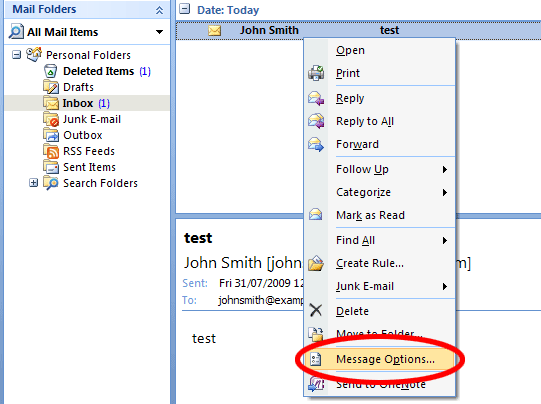
Step 1: Right click on the email you wish to view the headers of
Step 2: Click Message Options
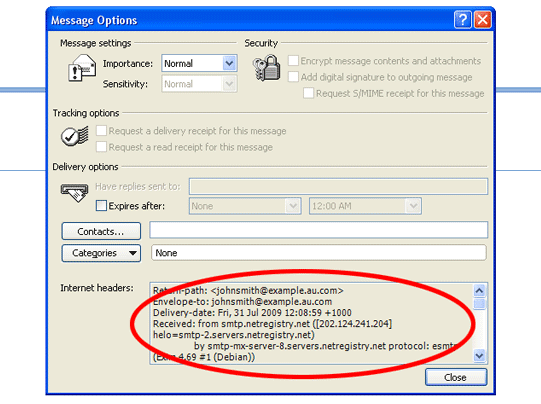
Step 3: At the bottom of the window that has opened, you will see the email headers for this email.
Outlook 2003
Step 1: Double click on the email you wish to view the headers for
Step 2: Click on View > Options
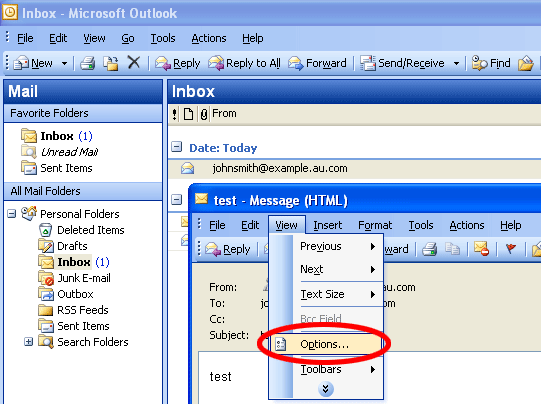
Step 3: At the bottom of the new window, you will see the email headers (internet headers) for this email.
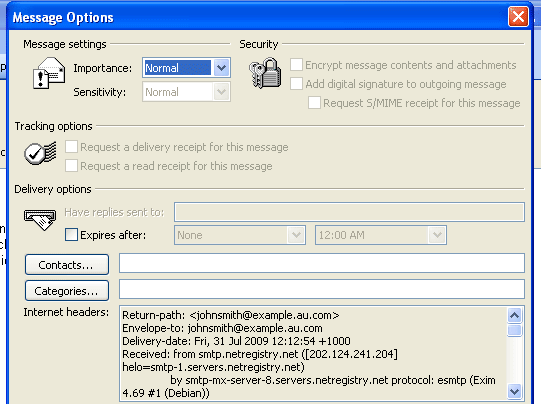
Outlook Express
Step 1: Double click on the email you wish to view the headers for
Step 2: Click on File > Properties
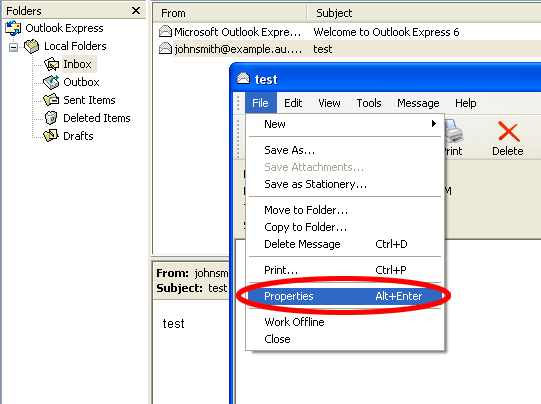
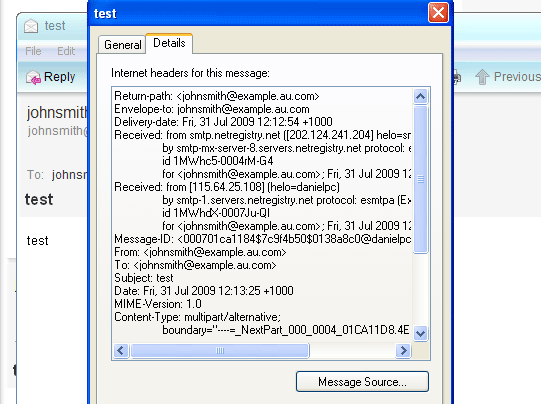
Step 3: Click on the Details tab, you will then see the email headers for this email.
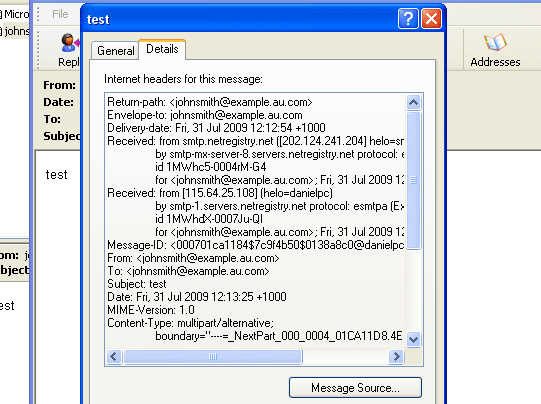
Windows Live Mail
Step 1: Double click on the email you wish to view the headers for
Step 2: Click on File > Properties
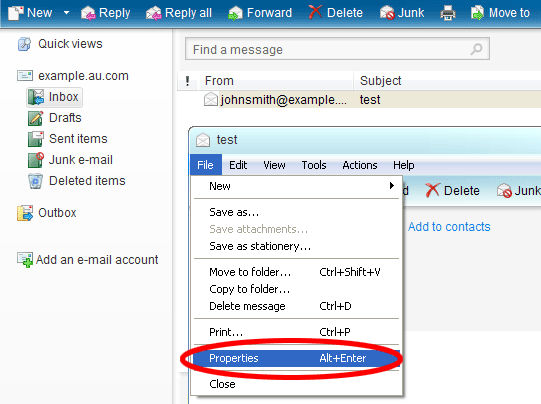
Step 3: Click on the details tab, you will then see the email headers for this email.
Mac Mail
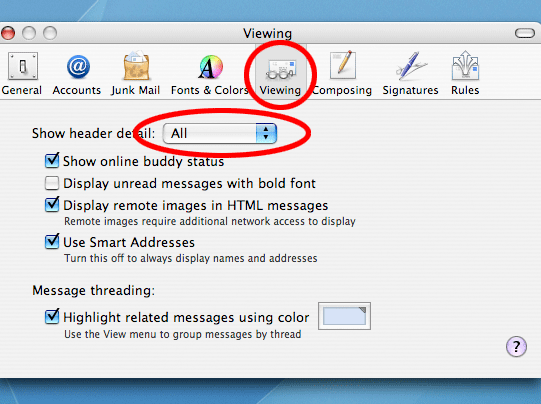
Step 1: Click on the Viewing Tab
Step 2: Under viewing, where it asks ‘Show header detail, choose All from the drop down menu
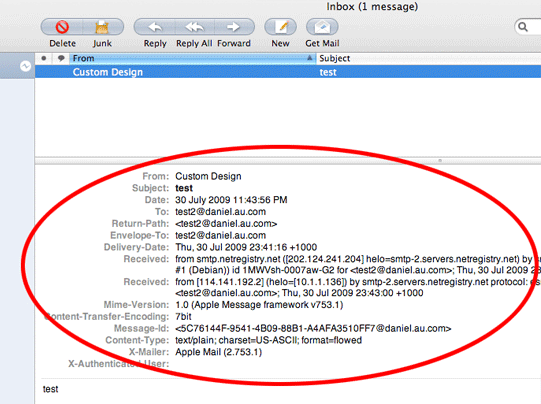
Step 3: View any of your emails, and you’ll see the full email headers above the body of the email.
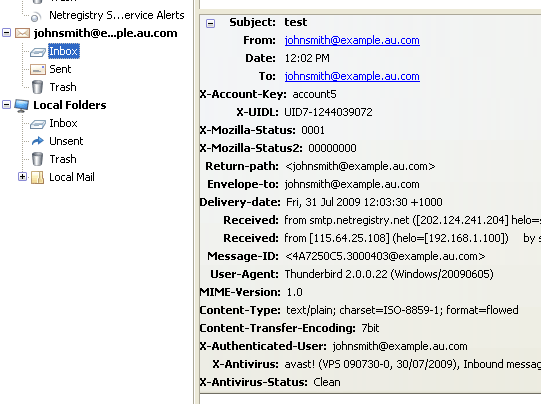
Thunderbird 3
Step 1: Click on View > Headers > All
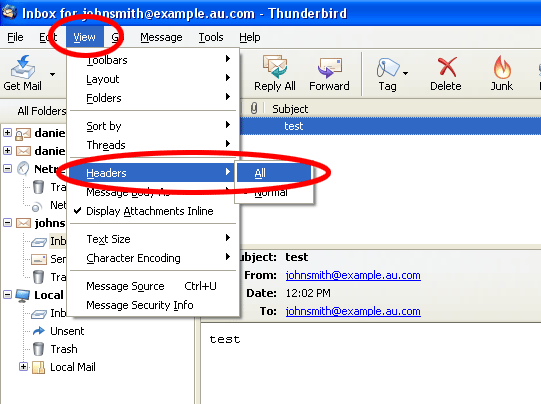
Step 2: View any of your emails and you’ll see your full email headers above the body of the email.
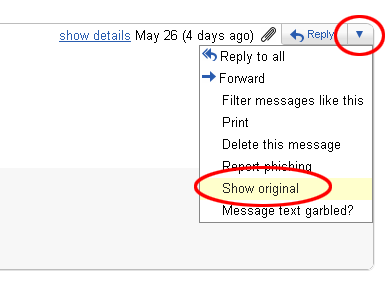
Gmail
Step 1: Open the email by clicking on it
Step 2: On the right hand side of the email, where it says ‘reply’, click on the arrow pointing downwards.
Step 3: Click on Show Original
Step 4: The Full email headers will be displayed to you.
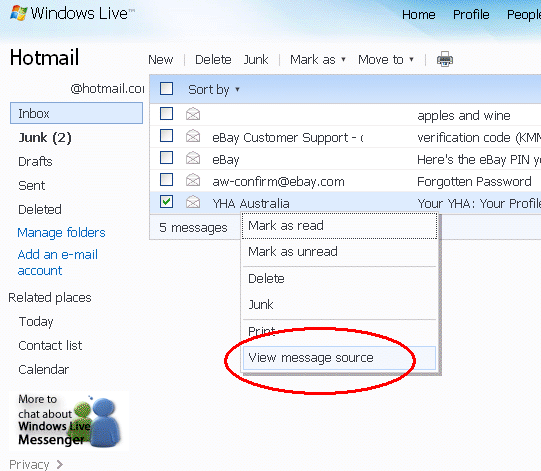
Hotmail
Step 1: Go to your inbox
Step 2: Right click on the email you wish to view headers for
Step 3: Click on ‘View Message Source’
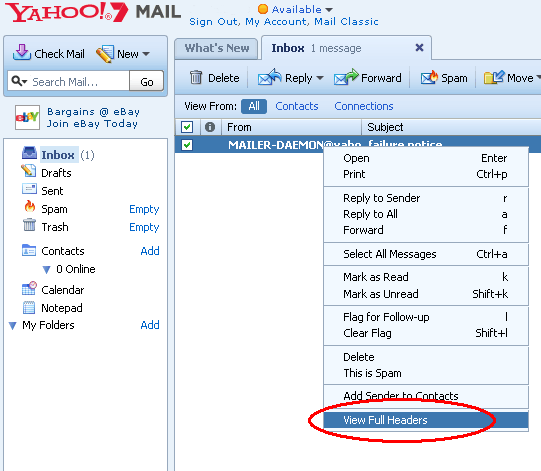
Yahoo
Step 1: Go to your inbox
Step 2: Right click on the email you wish to view headers for
Step 3: Click on ‘View Full Headers’
Webmail – Horde Traditional
Step 1: Go to your inbox
Step 2: Open the email you wish to get headers for
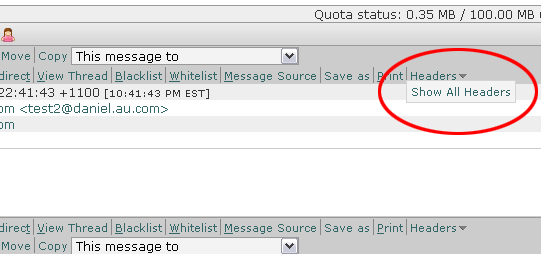
Step 3: Put your mouse over Headers, then click on ‘Show All Headers’
Step 4: Copy the headers that are Header information that is displayed on screen.
Webmail – Horde Dynamic
Step 1: Go to your inbox
Step 2: Open the email you wish to get headers for
Step 3: Click on ‘View Message Source’

Webmail – @mail – Simple Any Browser
Step 1: Go to your inbox
Step 2: Open the email you wish to get headers for
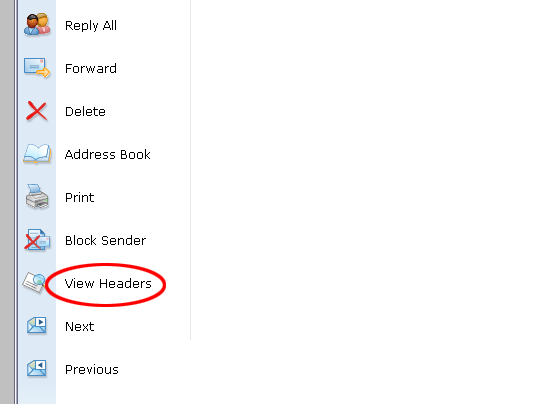
Step 3: Scroll down the left hand menu and click on ‘View Headers’