How to Edit Mail Settings for Mac OS X.3 to Send and Receive Email
You will need your email server settings to set up your email program. Print or write down the information that is displayed for use during this walk through.
Open Mail.


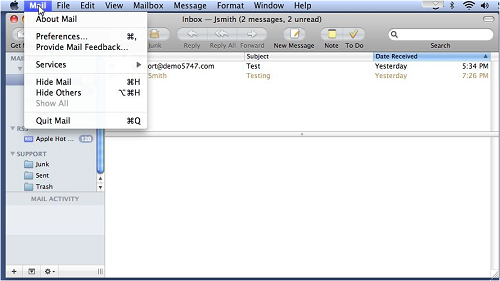
Once you've opened Mail, click on the menu labelled "Mail," and select "Preferences."
Make sure you have the Accounts Icon selected. You're presented with a window that contains three tabs, "Account Information, "Special Mailboxes," and "Advanced." First, let's look at the "Account Information" tab.

The Account type was determined when you set up the account. You cannot change it unless you delete this account and create a new one. The account type is POP.
Description can be whatever you like, but it is recommended that you use something descriptive.
Email Address should be your Aussie Wide Websites email address.
Full Name can be your name, or whatever text you'd like to be seen as your name when you send email.
Incoming Mail Server should be mail.yourdomain.com.au
"User Name" should be your address@yourdomain.com.au (Make sure to include the full addresst) Although this is not typical, it is required for the Aussie Wide Websites mail server.
Password is the password for your Email Address login name you set up in the control panel.
Outgoing Mail Server

You can edit the Outgoing Mail Server by pressing the "Server Settings" button.
The Outgoing Mail Server should bemail.yourdomain.com.au
The Server port" should be 25 or 2011 if you wish to use our own secure port
Leave Authentication at None.
Next, there are the Special Mailboxes
Set these three choices up according to your own preferences. They can all be left at Never if you want.
Last, please take a look at the Advanced options.

Enable this account means that you will be able to send and receive mail from this group of mail settings.
Include this account when automatically checking for new mail , keep that checked.
Remove copy from server after retrieving a message means that Mail will delete every message you download from pop.mydomain.com.au after it's been downloaded, and after the time specified by the pull down menu just below that checkbox. In this example we have set our OS X Mail program to delete the messages after one week but we advise to delete immediatly the message is downloaded to minimise the storage in your mailbox. This is valid with the larger emails being sent today.
You can use the "Remove now" button to delete any old mail on the server that's sitting there right now, if you wish.
Prompt me to skip messages over [ ] KB will let you tell Mail to not download messages larger than a certain size. Most people just leave this off. This will tell Mail to not download any particular message exceeding a certain file size. If you don't want to use it, leave the field blank.
If you're using SSL, the default port will be 995. If you're not using SSL, the port should be 110.
Authentication should be set to "Password."